
Your AI Agent Has a Config Problem (And You Don't Know It)
You just added 47 rules to CLAUDE.md. Your agent is slower now. Not faster. Slower.
This isn't a paradox — it's physics. Research from ETH Zurich shows that context files reduce success rates and increase inference costs by 20%. Stanford's "Lost in the Middle" benchmark proves that instructions at position 10 in a config file have 27% less attention than instructions at position 1.
Your agent has 200K tokens of RAM. Your config eats 30K at boot. The remaining 170K are competing with noise.
You wouldn't ship a program without a compiler. Why are you shipping agent configs without a linter?
This tutorial shows you how to install and use ClawdContext — a free VS Code extension that treats your agent markdown files as a system, not a pile of prompts.
Time to complete: 5 minutes.
What you'll get: A CER score, security scan, and actionable diagnostics for your agent config — before you ship.
Step 1: Install ClawdContext from the Marketplace
The fastest way: open the ClawdContext page on the VS Code Marketplace and click Install. It launches VS Code and installs in one click.
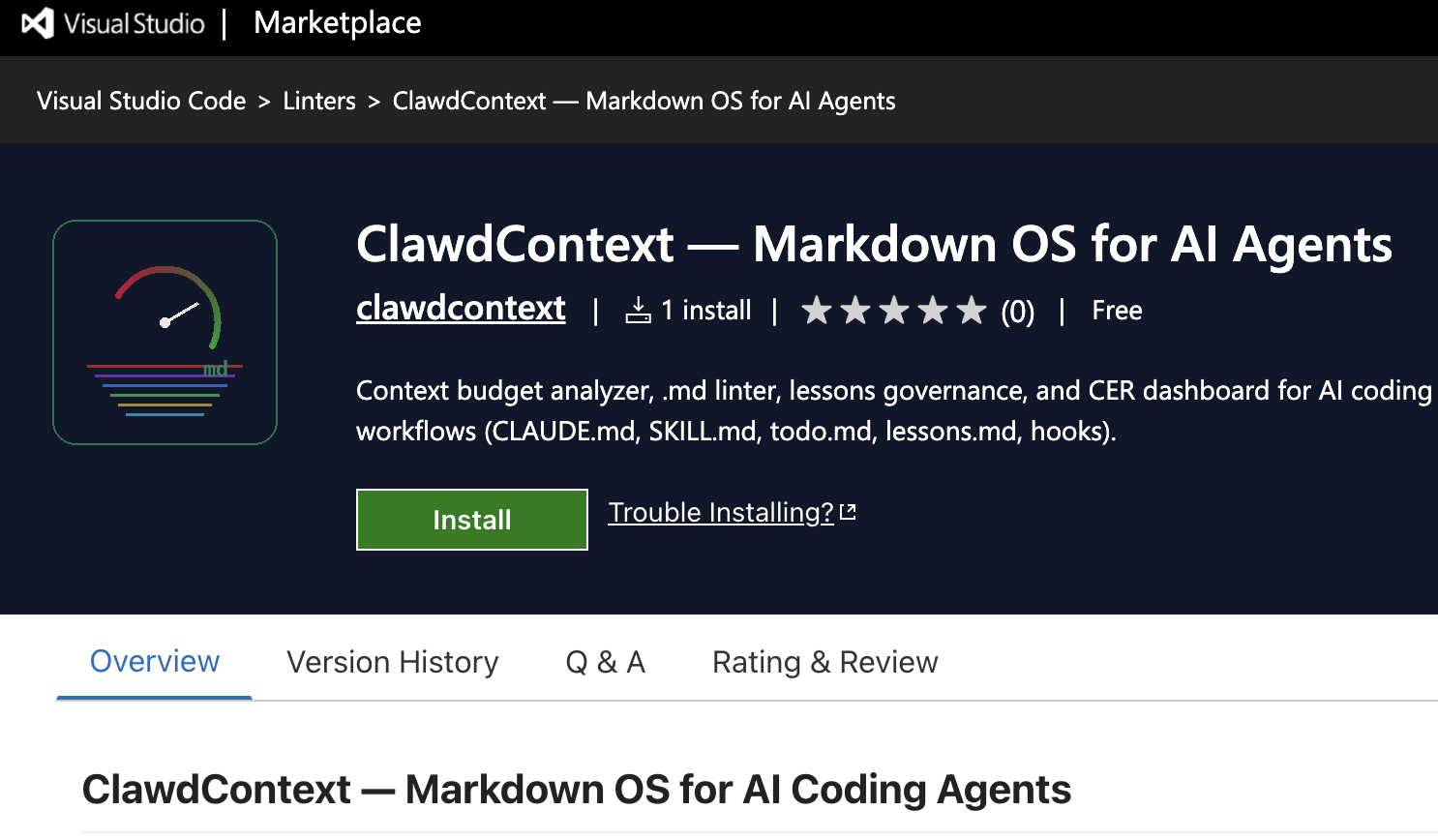
The ClawdContext Marketplace listing — click Install to add it directly to VS Code.
Alternatively, open VS Code and press Ctrl+Shift+X (or Cmd+Shift+X on macOS). Search for "ClawdContext" and click Install.
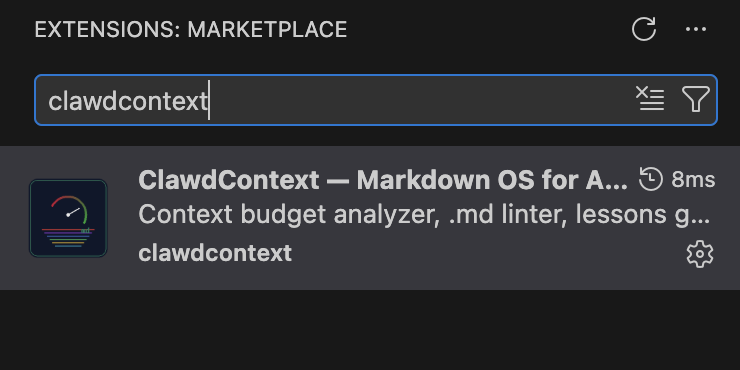
Search "ClawdContext" in the Extensions sidebar to find and install it.
Or run this from your terminal:
code --install-extension clawdcontext.clawdcontext
That's it. No configuration required. ClawdContext auto-detects your agent files on activation.
Step 2: Scaffold Your Markdown OS (If Starting Fresh)
If you already have CLAUDE.md, AGENTS.md, or lessons.md files, skip to Step 3.
Otherwise, open the Command Palette (Ctrl+Shift+P) and run:
ClawdContext: Scaffold Markdown OS Templates
This creates the full Markdown OS structure:
| File | Role | OS Equivalent |
|---|---|---|
CLAUDE.md | Global invariants and memory | Kernel config (/etc) |
SKILL.md | Reusable procedures | System calls (libc) |
todo.md | Current task state | Process control block |
lessons.md | Governed learning cache | Adaptive cache (L2/L3) |
The key insight: each file type has a distinct purpose. Procedures in the kernel waste tokens. Heuristics in skills waste attention. ClawdContext enforces these boundaries.
Step 3: Analyze Your Workspace
Run the analysis command:
ClawdContext: Analyze Workspace
ClawdContext scans every .md agent file and computes:
- Token counts per file and per layer (kernel, skills, learning, tasks)
- CER (Context Efficiency Ratio) — how much of the context window is left for actual reasoning
- Diagnostics — linter warnings for misplaced instructions, contradictions, bloat
- Security scan — suspicious patterns in
SKILL.mdfiles (exfiltration, prompt override, credential access)
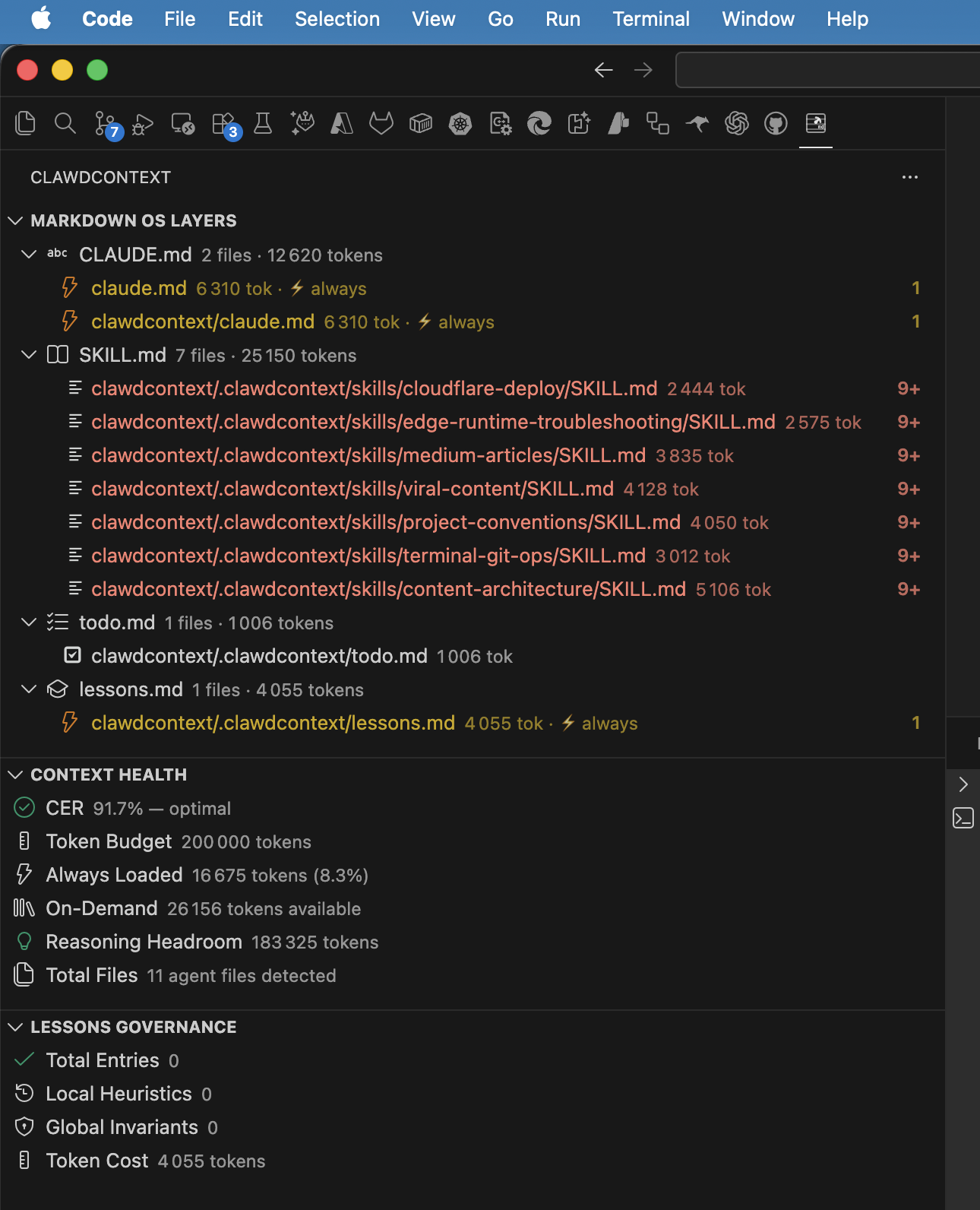
The CER Dashboard shows your context budget at a glance. Green = healthy (CER ≥ 0.4). Red = critical (CER < 0.2).
Step 4: Read the Diagnostics
After analysis, check the Problems panel (Ctrl+Shift+M). ClawdContext reports diagnostics with codes you can act on:
| Code | Meaning | Action |
|---|---|---|
CER_CRITICAL | Context efficiency below 0.2 | Reduce always-loaded config size |
KERNEL_BLOAT | CLAUDE.md exceeds token threshold | Extract procedures to SKILL.md |
PROCEDURE_IN_KERNEL | Step-by-step procedures in CLAUDE.md | Use quick fix to extract |
STALE_LESSON | Lesson older than TTL (60 days) | Review, archive, or refresh |
CONTRADICTION | Conflicting rules across files | Resolve the conflict manually |
LOST_IN_MIDDLE | Critical instructions buried at position 10+ | Move to top or bottom of file |
KESSLER_RISK | lessons.md has too many entries | Prune stale lessons |
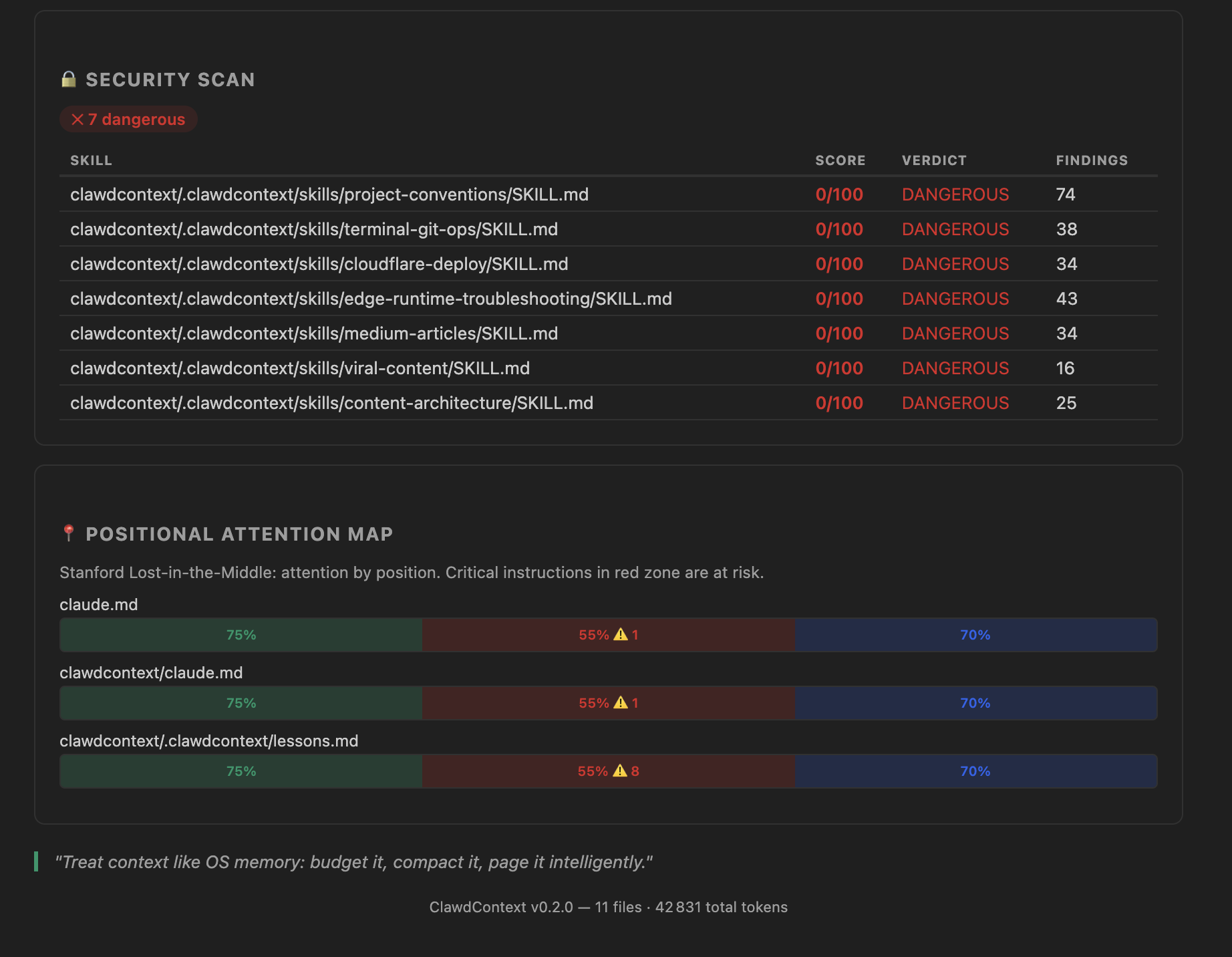
Every diagnostic comes with a quick-fix code action. Click the lightbulb to extract, move, or archive.
Each diagnostic links to a quick-fix code action. Hover over the warning, click the lightbulb icon, and ClawdContext will refactor for you:
- Extract Procedure to SKILL.md — moves step-by-step workflows out of the kernel
- Move Heuristic to lessons.md — relocates temporal patterns where they belong
- Add Missing Metadata — enforces governance fields on lessons
- Archive Deprecated Entries — cleans dead rules from lessons.md
Step 5: Check the Security Scanner
If you use community skills or downloaded SKILL.md files, the security scanner is critical.
Research from "Agent Skills in the Wild" found that 26% of 31,132 publicly available agent skills had vulnerabilities — from exfiltration beacons to credential harvesting.
ClawdContext scans for 6 threat categories:
- Exfiltration / network beacons — instructions to send data to external URLs
- Credential access — patterns targeting API keys, tokens, passwords
- Code execution / shell abuse — dangerous command patterns
- Obfuscation — base64 encoding, hex-encoded payloads
- Prompt override / injection — attempts to redefine agent behavior
- Persistence / reconnaissance — patterns for maintaining unauthorized access
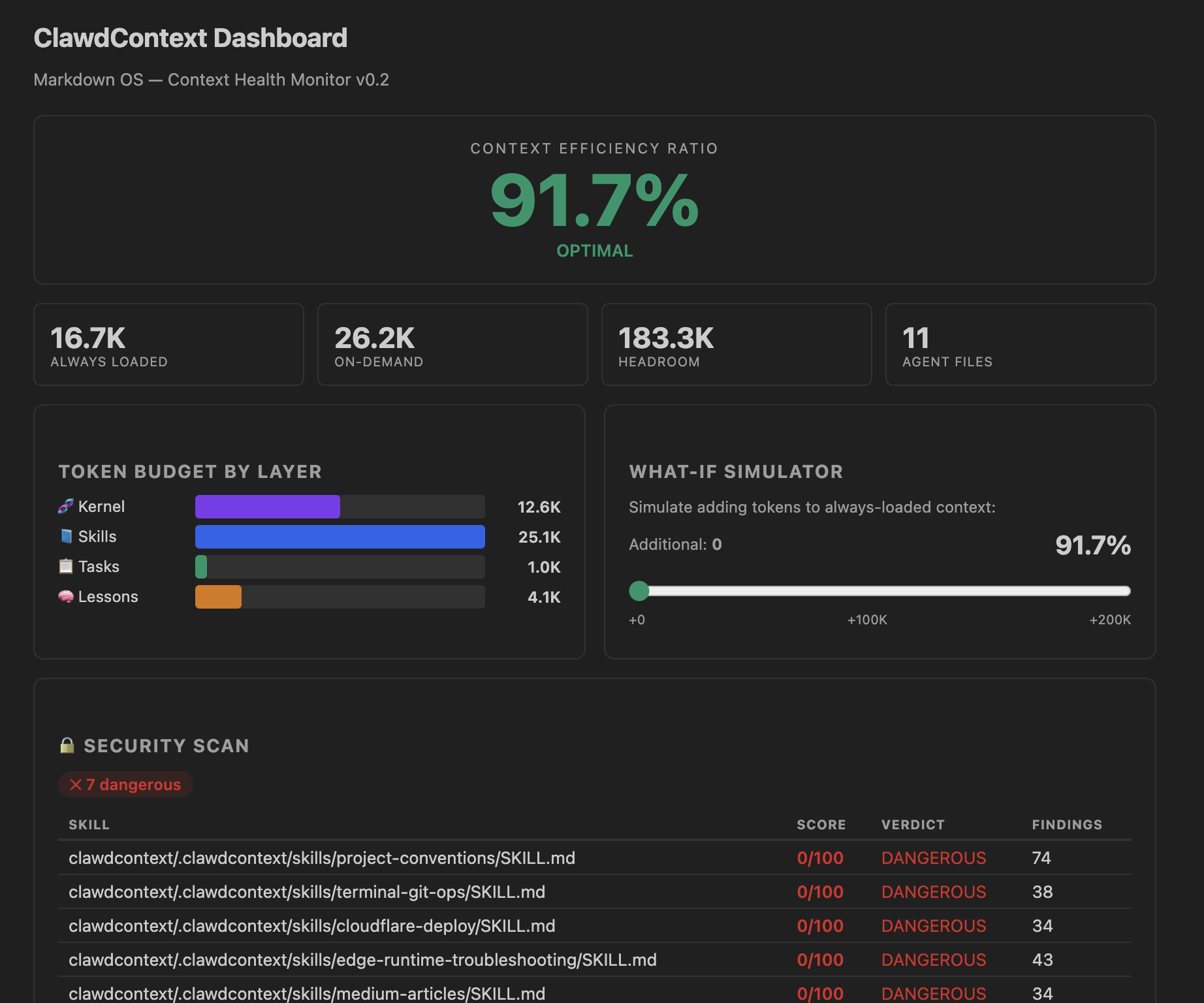
Each skill gets a verdict: clean, suspicious, or dangerous. Findings include the exact pattern and line number.
Open the Dashboard (ClawdContext: Open Dashboard) and scroll to the Security section to see per-skill verdicts.
Understanding CER: The One Number That Matters
CER (Context Efficiency Ratio) is the single most important metric for agent config health:
CER = (Context Limit − Always-Loaded Tokens) / Context Limit
Example: Context limit = 200,000 tokens. CLAUDE.md = 12,000 tokens. AGENTS.md = 5,000 tokens. Always-loaded total = 17,000 tokens. CER = (200,000 − 17,000) / 200,000 = 0.915 ✅
The thresholds:
- CER ≥ 0.4 — Healthy. Research target is > 0.6.
- CER 0.2–0.4 — Warning. Your agent is leaving performance on the table.
- CER < 0.2 — Critical. 80%+ of the context window is consumed before the agent starts reasoning.
Most teams we've analyzed run at CER 0.1–0.3. That means their agent is reasoning in a cramped 20–30% of its available context while 70–80% is wasted on boot-time configuration that the model barely attends to.
The fix is architectural: move procedures to SKILL.md (loaded on demand), move heuristics to lessons.md (governed), and keep CLAUDE.md lean.
Step 6: Your Daily Workflow
After the initial setup, ClawdContext runs in the background. Here's the workflow:
Morning (or after git pull)
- Check the CER status bar — is it still green?
- Open the Lessons panel — any stale lessons?
- Review CodeLens badges on
lessons.md— age and confidence at a glance
When adding new rules
- Add the rule to the correct file (kernel vs. skill vs. lesson)
- Run
ClawdContext: Lint .md Agent Files - Check CER impact — did it drop?
- Use the What-If Simulator to predict CER before committing
Weekly review
- Run
ClawdContext: Prune Stale Lessons - Run
ClawdContext: Review Promotion Candidates - Generate a
ClawdContext: Context Health Reportfor your team
Command Reference
Core Commands (14)
| Command | What It Does |
|---|---|
Analyze Workspace | Full scan — tokens, CER, diagnostics, security |
Open Dashboard | Interactive CER dashboard with layer breakdown |
Lint .md Agent Files | Run all diagnostic rules on agent markdown |
Generate Context Health Report | Exportable markdown report |
Prune Stale Lessons | Archive lessons past TTL |
Review Promotion Candidates | Find lessons ready to become kernel rules |
Scaffold Markdown OS Templates | Generate starter files |
Extract Procedure to SKILL.md | Refactor kernel → skill |
Move Heuristic to lessons.md | Refactor kernel → learning |
Archive Deprecated Entries | Clean dead rules |
Analyze Kernel Bloat | Deep token analysis of CLAUDE.md |
Apply Config Preset | Apply predefined configuration (Minimal, Standard, Enterprise) |
Export Dashboard | Export dashboard data as JSON or Markdown |
CER Diff: Show Changes | Track CER changes between Git commits |
AI Commands (11)
| Command | What It Does |
|---|---|
AI: Test Connection | Verify your AI provider configuration |
AI: Analyze Context | AI-powered analysis of context health |
AI: Generate Improvement Suggestions | Get actionable optimization suggestions |
AI: Review Security | Security audit of agent configuration |
AI: Check Tool Safety | Scan MCP tools for safety concerns |
AI: Estimate CER Impact | Predict CER after proposed changes |
AI: Suggest Refactoring | AI-driven decomposition recommendations |
AI: Generate Context Report | Comprehensive AI-generated analysis |
AI: Interactive Chat | Chat interface for context optimization |
AI: Configure Provider | Set up your preferred AI provider |
AI: Multi-Provider Compare | Compare results across providers |
Configuration
All settings are in VS Code's Settings → Extensions → ClawdContext. v0.4.0 organizes settings into four categories:
Core Settings
| Setting | Default | Description |
|---|---|---|
tokenBudget | 200,000 | Your model's context window size |
cerWarningThreshold | 0.4 | CER below this triggers a warning |
cerCriticalThreshold | 0.2 | CER below this triggers critical |
lessonsTtlDays | 60 | Days before a lesson is considered stale |
lessonsMaxEntries | 50 | Maximum lessons before Kessler risk |
configPreset | standard | Apply a preset: minimal, standard, or enterprise |
dashboard.exportFormat | json | Default export format (json or markdown) |
AI Provider Settings
| Setting | Default | Description |
|---|---|---|
ai.provider | anthropic | AI provider: anthropic, openai, azure, google, ollama |
ai.model | (per provider) | Model identifier for the selected provider |
ai.temperature | 0.3 | Response temperature (0–1) |
ai.maxTokens | 4096 | Max tokens for AI responses |
ai.requestTimeout | 30000 | Timeout in ms for AI requests |
mTLS / Enterprise Settings
| Setting | Default | Description |
|---|---|---|
ai.mtls.enabled | false | Enable mutual TLS for AI provider connections |
ai.mtls.certPath | — | Path to client certificate (PEM) |
ai.mtls.keyPath | — | Path to client private key (PEM) |
ai.mtls.caPath | — | Path to CA bundle (PEM) |
Security Settings
| Setting | Default | Description |
|---|---|---|
security.scanOnSave | true | Auto-scan agent files on save for secrets |
security.blockedPatterns | […] | Regex patterns to detect leaked secrets |
For Claude (200K context), keep the defaults. For GPT-4 (128K), set tokenBudget to 128000. Most AI providers require an API key stored in VS Code's secret storage.
What's New in v0.4.0
Version 0.4.0 is the biggest update yet, adding AI-powered analysis, enterprise security, and advanced tracking:
- 5 AI Providers — Anthropic, OpenAI, Azure OpenAI, Google Gemini, and Ollama (local). Full mTLS support for enterprise deployments.
- 11 AI Commands — From context analysis and security review to interactive chat and multi-provider comparison.
- CER Diff Tracking — Track how your Context Efficiency Ratio changes between Git commits. Catch context bloat before it ships.
- Config Presets — One-click configuration: Minimal (solo dev), Standard (team), Enterprise (production + mTLS).
- Dashboard Export — Export your CER dashboard as JSON or Markdown for team reviews and compliance.
- Expanded Security Patterns — 23 patterns detect leaked API keys, tokens, and secrets in agent files.
Before vs. After: A Real-World Example
| Metric | Before | After ClawdContext |
|---|---|---|
| CLAUDE.md size | 8,200 tokens | 2,100 tokens |
| Total always-loaded | 14,500 tokens | 3,800 tokens |
| CER | 0.28 ⚠️ | 0.81 ✅ |
| Diagnostic warnings | — | 0 (all resolved) |
| Contradictions found | 3 (hidden) | 0 (resolved) |
| Skills extracted | 0 | 4 procedures |
| Stale lessons pruned | 0 | 11 archived |
Result: 74% less boot-time context consumption. The agent now has 3.8x more reasoning headroom.
What's Next
ClawdContext is free and open source. Here's how to go deeper:
- Install from Marketplace: VS Code Marketplace
- Star the repo: github.com/yaamwebsolutions/clawdcontext4vscode
- Read the research: Your AI Agent Has 200K Tokens of RAM — And You're Wasting 80% of It
- Join the discussion: GitHub Discussions
- Report issues: GitHub Issues
Stop prompting. Start orchestrating.